
Step 5 - pfSense
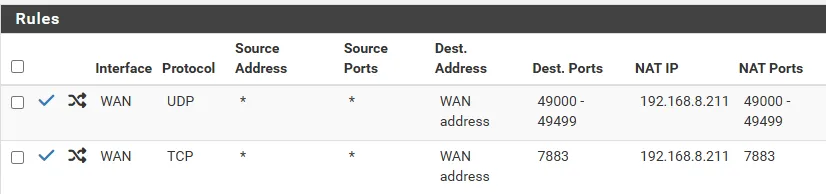
To ensure real-time voice and video function correctly, you must forward the LiveKit ports from your pfSense firewall to your Spokes Docker host.
Port Forwarding (NAT)
Section titled “Port Forwarding (NAT)”- Log into your pfSense web interface.
- Navigate to Firewall > NAT > Port Forward.
- Click Add to create a new rule.
Rule 1: UDP Range
Section titled “Rule 1: UDP Range”Configure the rule with the following settings:
- Interface: WAN
- Protocol: UDP
- Destination: WAN address
- Destination port range:
50000to50499(or the UDP Range you decided on in Step 1) - Redirect target IP: The internal IP of your Spokes server (e.g.,
192.168.1.50) - Redirect target port:
50000(must match the Destination port) - Description: Spokes LiveKit UDP
- Filter rule association: Add associated filter rule
Save the rule.
Rule 2: TCP Fallback
Section titled “Rule 2: TCP Fallback”Click Add again for the second rule:
- Interface: WAN
- Protocol: TCP
- Destination: WAN address
- Destination port range:
7881to7881(or the TCP Fallback port you decided on in Step 1) - Redirect target IP: The internal IP of your Spokes server (e.g.,
192.168.1.50) - Redirect target port:
7881(must match the Destination port) - Description: Spokes LiveKit TCP Fallback
- Filter rule association: Add associated filter rule
Save the rule, and click Apply Changes at the top of the screen.
Double NAT & Local Network Voice Chat
Section titled “Double NAT & Local Network Voice Chat”If you have users connecting to Spokes from the same local network as the server, you will need to enable NAT Reflection (Hairpin NAT) using the following strategy to bypass the Double NAT limitation.
Because Spokes LiveKit requires clients to connect via your external Public IP (or a DDNS domain like DuckDNS), internal clients will fail to connect unless your router loops that traffic back inside.
To guarantee this works flawlessly, you should create a second set of Port Forwarding rules that use your DDNS domain as the destination, bringing the total to 4 rules per instance.
Step 1: Create a DDNS Alias
Section titled “Step 1: Create a DDNS Alias”- In pfSense, go to Firewall > Aliases.
- Create a new IP alias (e.g.,
public_ip). - Add your DDNS domain (e.g.,
yourserver.duckdns.org) to the alias and save.
Step 2: Duplicate Rules with the Alias
Section titled “Step 2: Duplicate Rules with the Alias”Go back to Firewall > NAT > Port Forward. You should already have your two standard rules targeting the WAN Address:
- WAN | UDP | Destination: WAN Address | Port: 50000-50499
- WAN | TCP | Destination: WAN Address | Port: 7881
Create two additional rules identical to the ones above, but change the Destination from WAN Address to Single host or alias and type in your public_ip alias:
- WAN | UDP | Destination:
public_ip| Port: 50000-50499 - WAN | TCP | Destination:
public_ip| Port: 7881
Step 3: Enable Pure NAT Reflection
Section titled “Step 3: Enable Pure NAT Reflection”Edit all four of these rules, scroll down to the NAT reflection setting, and set it to Enable (Pure NAT).
(Make sure Enable automatic outbound NAT for Reflection is also checked in System > Advanced > Firewall & NAT).
This trick ensures that when a local user tries to connect to your public DDNS domain, pfSense explicitly matches the resolved public IP to your alias rule, intercepts the request, and loops it back to your internal Docker server.